
Reference
MCP
Let an MCP client, a script or a chat bot work the app, on this computer or from another one.
MCP (Model Context Protocol) is an open standard that lets one program use another. With it, an MCP client such as Claude Desktop, Claude Code or Cursor can open pictures and videos, change settings, run the library, save captures and look at the preview, through the same actions as the window.
Whatever a client does shows in the window, can be undone with Ctrl+Z, and is saved like a change made by hand.
This page covers the basics. Every tool and rule is in docs/MCP.md on GitHub.
Safe by default
- The server is off until you turn it on.
- When on, it listens on this computer only (
127.0.0.1) and never connects anywhere by itself. It downloads from the web only when a client sends a job with a web address in place of a file. - It refuses requests from web pages.
- Read only lets clients look but change nothing.
Connect a client on this computer
In the sidebar, open MCP and turn on Run the MCP server.
The state line shows the address,
http://127.0.0.1:51550/mcpat first.Click Copy client configuration.
Paste it into your MCP client's configuration and restart the client. In Claude Desktop: Settings → Developer → Edit Config. In Cursor: Settings → MCP → Add new server.
The block starts the app with --mcp, a bridge that relays the client's messages and starts the app when it is not running:
{
  "mcpServers": {
    "vrchat-dlss5-cam": {
      "command": "C:\\Path\\To\\VRChatDLSS5Cam.exe",
      "args": ["--mcp"]
    }
  }
}
A client that takes a URL connects straight to the running app. In Claude Code:
claude mcp add --transport http vrchat-dlss5-cam http://127.0.0.1:51550/mcp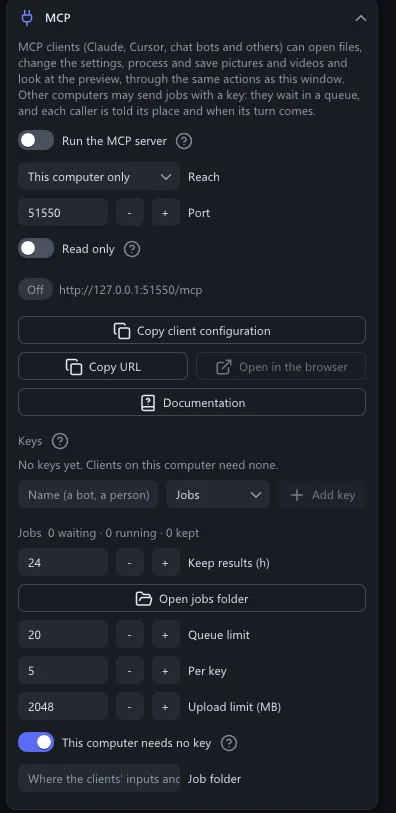
Let other computers send work
One computer with a strong card can serve several others: a chat bot, a script, or a client on another PC sends a picture or a video, waits in a queue, and fetches the result.
Set Reach to Local network, then click Allow through Windows Firewall and accept the administrator prompt.
Under Keys, type a name for the client, choose the role Jobs and click Add key.
The key is on the clipboard. Give it to that client, and only to that client.
Give the client the address shown under the state line, such as
http://192.168.1.20:51550/mcp.
| Role | May |
|---|---|
| Viewer | Look: status, settings, log, preview, library. |
| Jobs | Send files, follow and fetch its own jobs. Nothing else. |
| Admin | Everything the window can do. |
Jobs run one at a time, after your own work at the window. Jobs in the section shows how many wait and run; Keep results sets how long finished files stay for their client.