
Guide · Step 4 of 8
Videos and animations
Open a video or an animated GIF, choose the part you want and save it with DLSS 5 applied.
A video goes through the same DLSS 5 pass as a photo, one frame after another. Animated GIF, APNG and WebP files count as videos.
Open a video
Click Open a video on the Get started page, or Open video... in the Source section. You can also drag the file onto the window.
The first frame appears, with the video controls under it.
MP4, MOV, MKV, WebM and AVI open, as far as Windows can play them, and so do animated GIF, APNG and WebP.
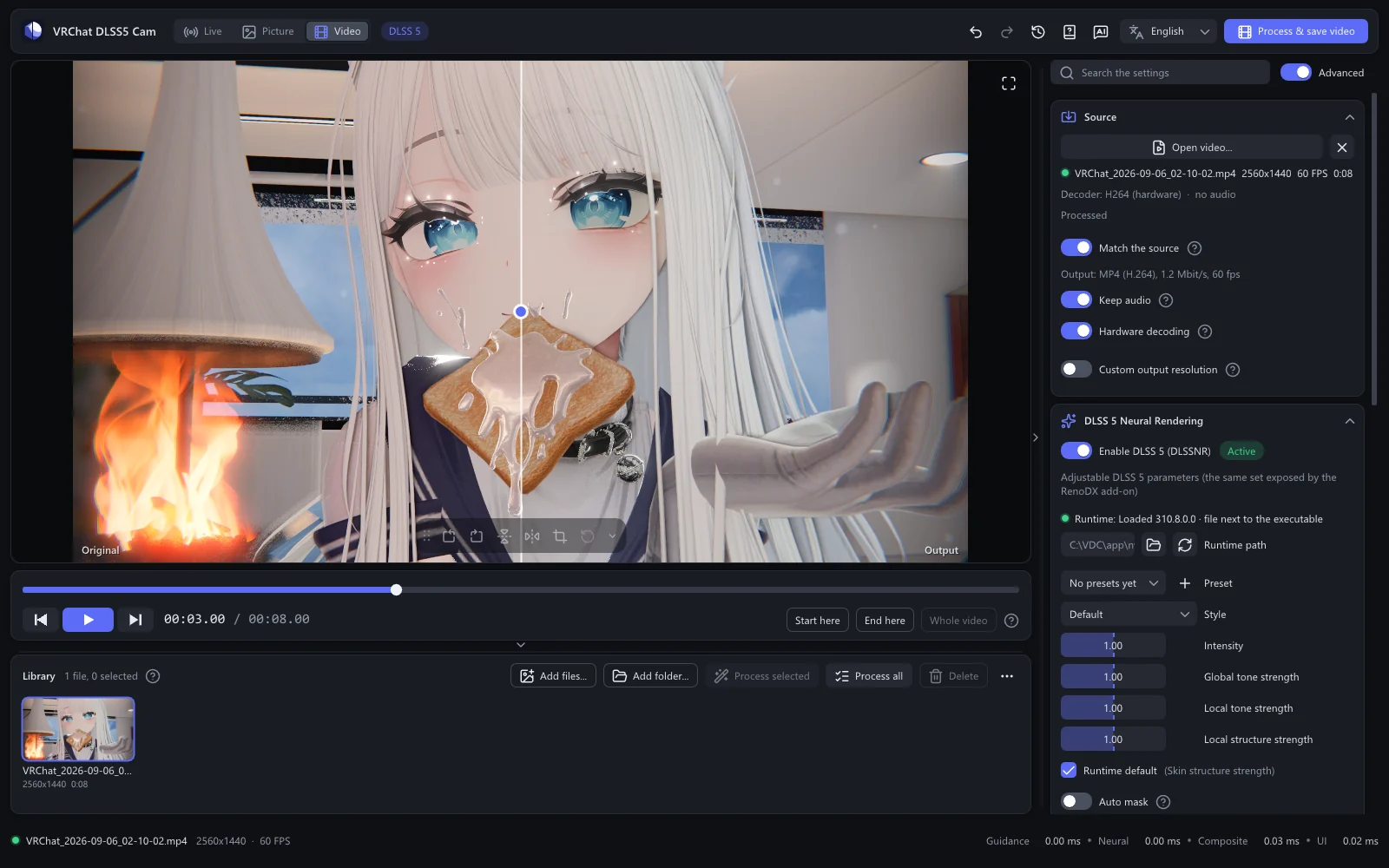
Play and choose a part
- Space plays and pauses. The preview runs every frame through DLSS 5, so it may play slower than real time. The saved video keeps its normal speed.
- ← and → step one frame, with Shift ten frames. Home and End jump to the start and the end.
- Point at the timeline to see a small picture of that moment.
- Start here (key I) and End here (key O) mark the part to save. Whole video clears the marks. The sound follows the same part.
Save
Look at Capture → Estimated time. It says roughly how long the video takes on your card.
Click Process & save video at the top right.
A bar shows the progress and the time left. The settings are locked meanwhile, and Cancel stops the run.
At first the result matches the source: the same format, frame rate and bitrate. A GIF comes back as a GIF, with its loop count, and every frame keeps its own timing.
Another format
Turn off Source → Match the source to choose the format under Save as:
| Save as | Good for |
|---|---|
| MP4 (H.264) | Sharing anywhere. Keeps the sound. |
| MP4 (HEVC) | Smaller files at the same quality. Keeps the sound. |
| PNG sequence | Every frame as a lossless PNG, in a folder of its own. Large. |
| GIF | Short loops. 256 colours per frame, at most 50 frames per second. |
| APNG | Lossless animation. |
| WebP | Animation, lossy or lossless (WebP quality 100). |
With MP4 you also set the Bitrate (40 Mbit/s keeps 4K nearly free of compression marks) and Keep audio.